Intelligent Person Analysis
Public Configurations
Context
Principles
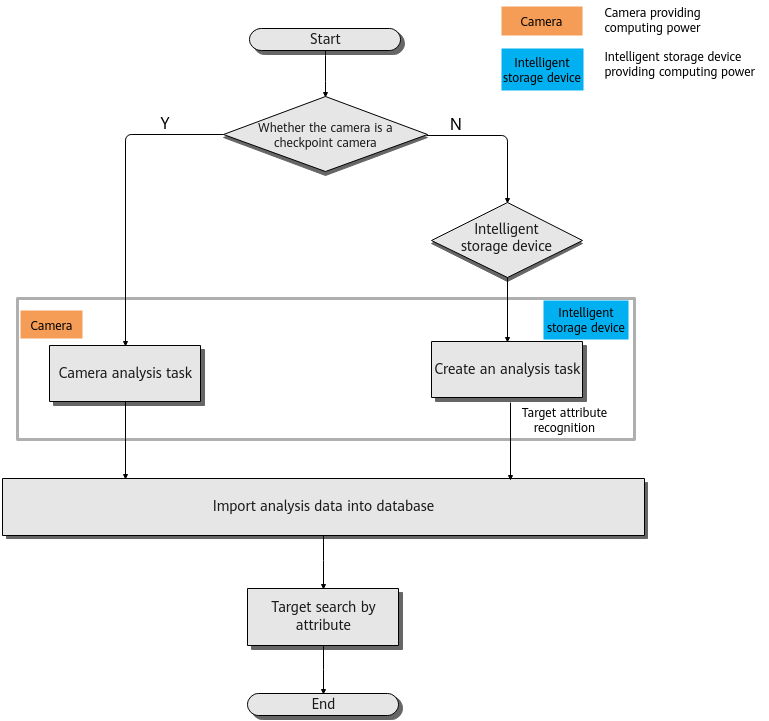
Configuration Process
- The intelligent person analysis function implemented using intelligent cameras can be configured on the LDU or in the camera web system.
Figure 4-263 shows the configuration process on the LDU. For details about the configuration in the camera web system, see the product documentation of the corresponding camera.
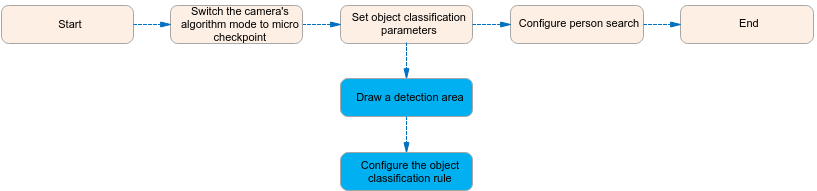
- The intelligent person analysis implemented using the can be configured only on the LDU. Figure 4-264 shows the configuration process.

Function Description
Table 4-237 describes the camera intelligence requirements.
Intelligence Type |
Camera intelligence |
HWT-IVS1800 intelligence |
|---|---|---|
Requirement on the Camera |
|
|
Application Scope |
China |
China |
Application Limitations
- For details about the data retention period and clearance rules, see Data Clearance Rules.
- Intelligent person analysis is not supported for video encoded in the MJPEG format.
- To configure intelligent analysis for cameras on the iClient S100, the camera version must be 9.0.0 or later.
Enabling Personal Feature Recognition on Cameras
Enabling Personal Feature Recognition
Context
- Object classification algorithms can recognize motor vehicles, non-motorized vehicles, and pedestrians in video at the same time.
- The intelligent attribute of the camera is automatically set to Others when an intelligent analysis function is enabled.
- Cameras have been configured to synchronize time with the HWT-IVS1800. This function is enabled by default. For details, see Configuring Time Synchronization from a Camera to the HWT-IVS1800.
Procedure
- Log in to the LDU as the admin user. (
 Logging In to the LDU)
 - Disable the target recognition and motor vehicle detection functions of the camera.
- For details about how to disable target detection, see Enabling Target Recognition.
- For details about how to disable motor vehicle detection, see 5.
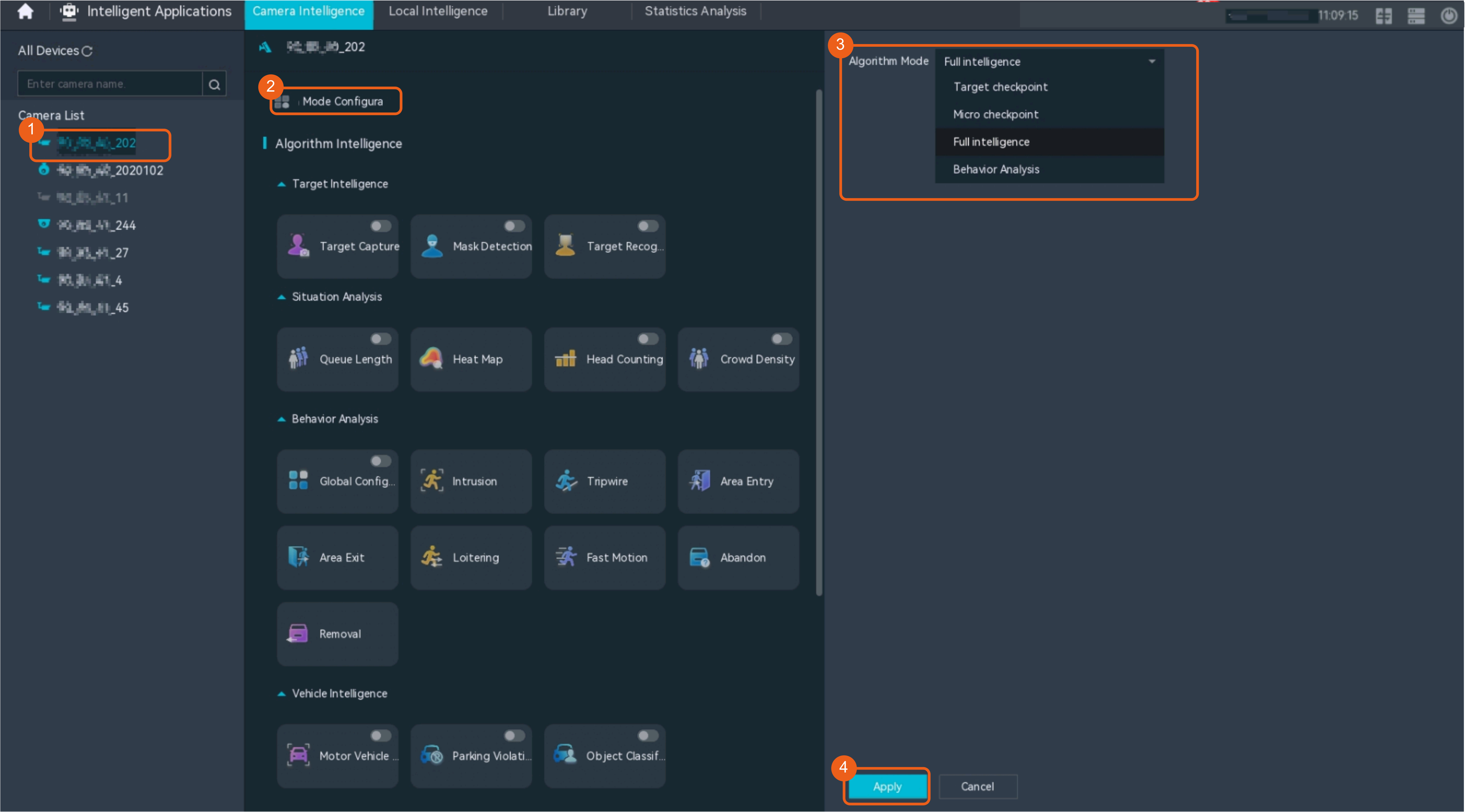
- Set the camera algorithm mode. You need to set the camera algorithm mode only for some camera models. If the camera algorithm mode is not displayed, skip this step.
- Click
 in the upper left corner.
 - Choose Intelligent Application > Camera Intelligence > Algorithm Mode.
- Set the camera algorithm mode, as shown in Figure 4-265.
Table 4-238 describes the mandatory parameter.
- Click
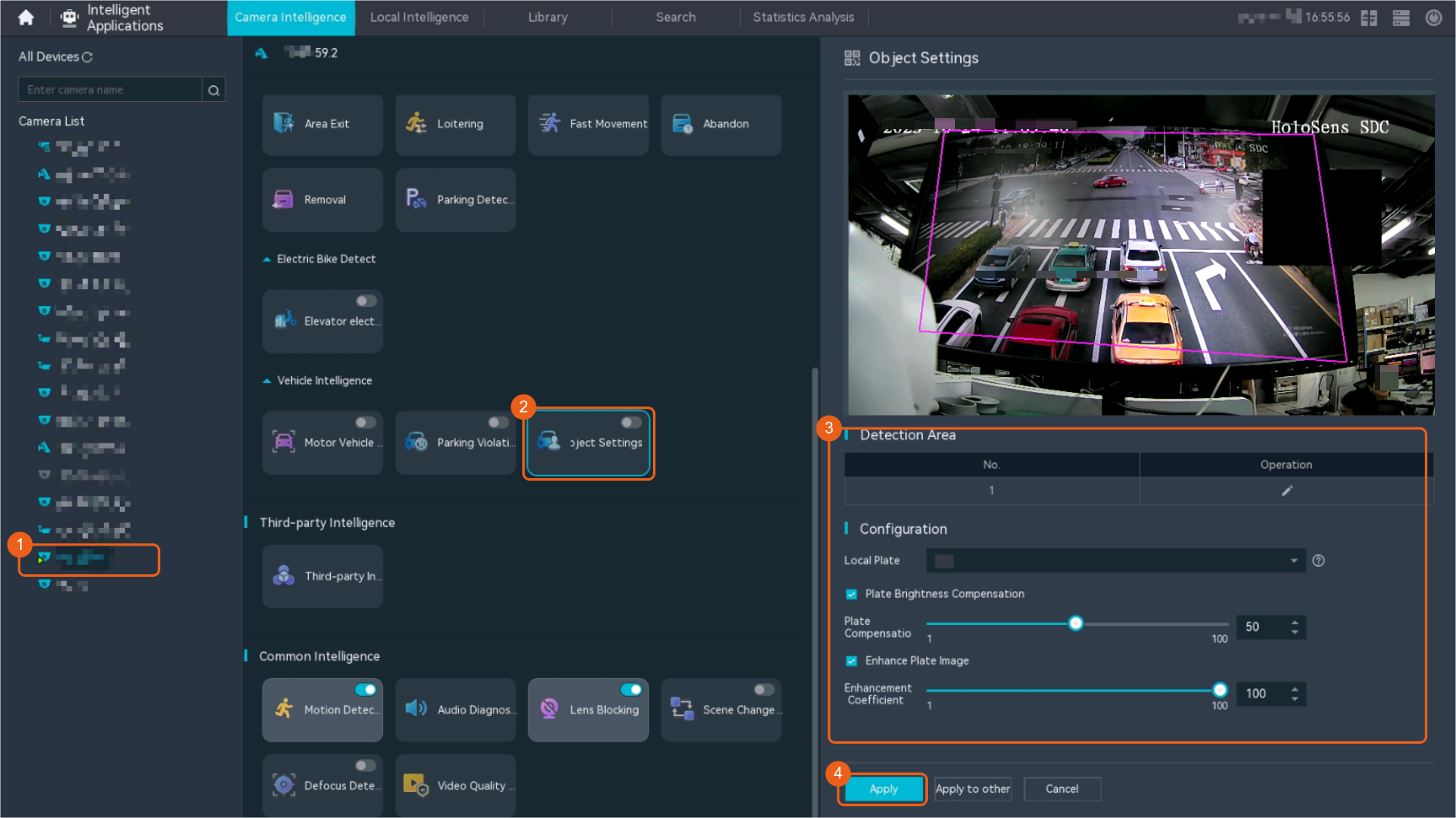
- Configure object classification.
- Choose Intelligent Application > Camera Intelligence > Vehicle Intelligence > Object Classification.
- Configure object classification, as shown in Figure 4-266.
Table 4-239 describes the parameters.
Table 4-239 Parameter descriptionParameter
Description
Enable
Indicates whether to enable object classification.
After this function is enabled, the camera detects motor vehicles, non-motorized vehicles, and pedestrians in live video.
Detection area
Draws a detection area.
Plate Brightness Compensation
If the brightness of the license plate is too high or too low, you can enable this function to compensate brightness for captured license plate images.
- Enable
- Disable
Plate Compensation Level
This parameter is available only when Plate Brightness Compensation is set to Enable. A higher compensation level indicates a larger degree for increasing or decreasing the license plate brightness.
Enhance Plate Image
The system enhances the license plate image through noise reduction, deblurring, or dirt removal to improve the license plate brightness and contrast.
Enhancement Coefficient
This parameter is available only when Enhance Plate Image is enabled. The default value is 100.
Local Plate
Preferential province (or city) name abbreviation used when the first character of a license plate cannot be recognized.
Only one province (or city) name abbreviation can be configured.
Enabling Personal Feature Recognition in the HWT-IVS1800

This feature applies only to PoC scenarios outside the Chinese mainland.
Enabling Object Classification
Context
- Object classification algorithms can recognize motor vehicles, non-motorized vehicles, and pedestrians in video at the same time.
- Cameras have been configured to synchronize time with the HWT-IVS1800. This function is enabled by default. For details, see Configuring Time Synchronization from a Camera to the HWT-IVS1800.
Procedure
- Log in to the LDU as the admin user. ( Logging In to the LDU)
- Click
 in the upper left corner.
 - Choose .
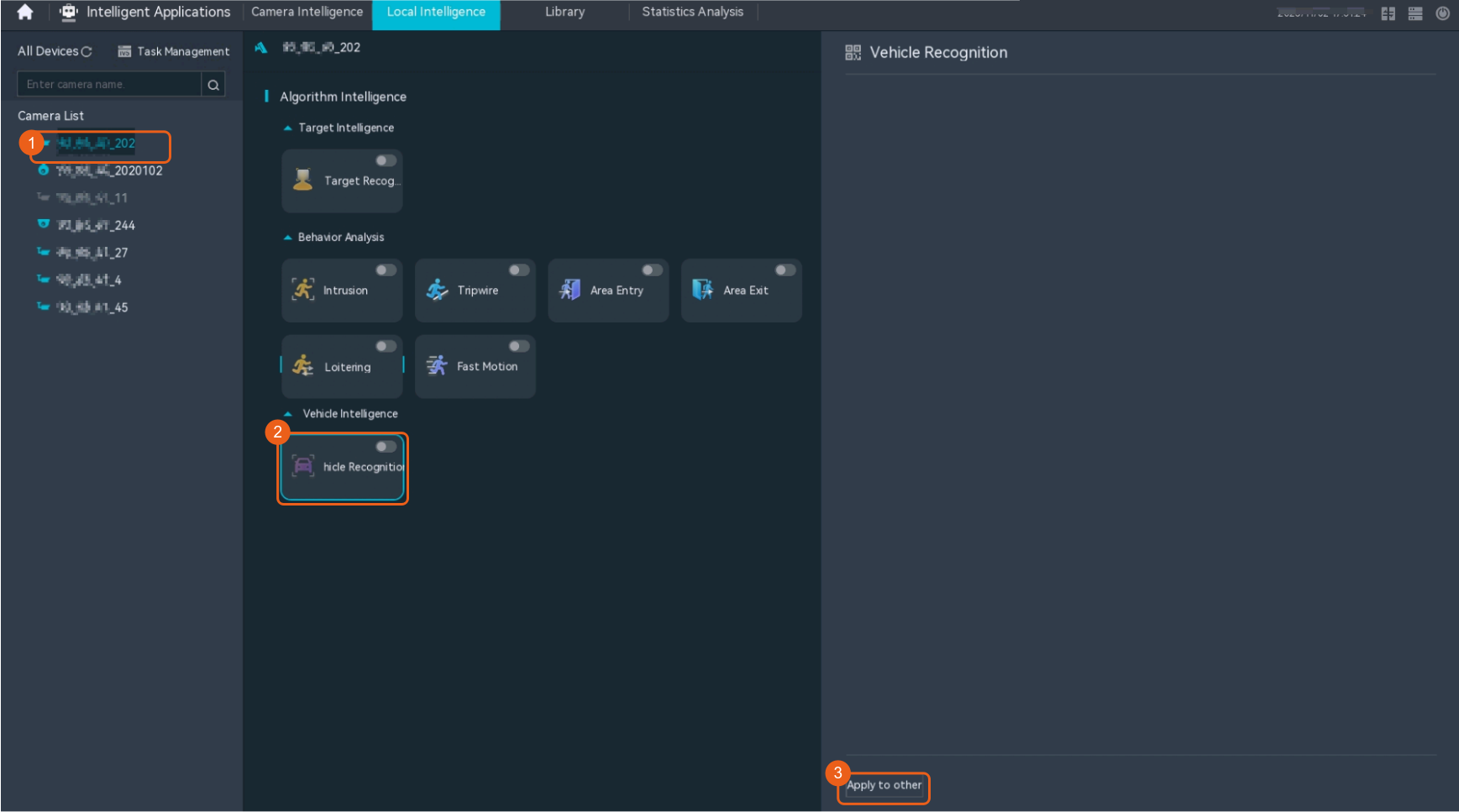
- Enable vehicle recognition, as shown in Figure 4-267.
Related Feature Operations
For details about operations related to intelligent personal attribute recognition, see Person Search by Attribute.
Personal Attribute Recognition
Feature Description
Definition
Personal attributes in video can be detected in real time.
Personal attributes include age, gender, tops color, tops style, physique, glasses, and mask.
Customer Benefits
The system automatically recognizes personal attributes, reducing labor costs, shortening service processing time, and enhancing service efficiency.
Application Scenario
This function is mainly used to configure person and vehicle recognition tasks in key areas such as campus roads and fire passages for personal attribute recognition.
Requirements
NE |
Version Requirement |
License Requirement |
Function |
|---|---|---|---|
HWT-IVS1800-D /HWT-IVS1800-E |
11.1.0 and later versions |
N/A |
Provides the personal attribute recognition function. |
Application Limitations
This function is used only for PoC outside the Chinese mainland.
Feature Configuration (Based on Cameras)
Scenario Description
Table 4-240 describes the support for this feature in different client scenarios.
Client |
Feature Support |
Reference Document |
|---|---|---|
LDU |
Not supported |
Enable object classification for cameras by referring to Enabling Personal Feature Recognition on Cameras and load the target search plug-in of the corresponding device. |
Camera web system |
Supported |
Complete the configuration by referring to the product documentation of cameras. |
iClient S100 |
Not supported |
- |
Feature Configuration (Based on the HWT-IVS1800)
This feature applies only to PoC scenarios outside the Chinese mainland.
Scenario Description
- Table 4-241 describes the support for this feature in different client scenarios.
Client |
Feature Support |
Reference Document |
|---|---|---|
LDU |
Supported |
Enable object classification by referring to Enabling Personal Feature Recognition in the HWT-IVS1800 and load the target search plug-in for the corresponding device. |
iClient S100 |
Supported |
Complete the configuration by referring to this section. |
- After local intelligence is enabled or an analysis task is created for a camera, do not modify the attributes of the camera. Otherwise, target recognition and video structuring tasks will become invalid, and you will need to delete and recreate the tasks.
(Optional) Configuring a Person Recognition Task
- On the iClient S100 home page, choose .
- Right-click an HWT-IVS1800 and choose Task Management.
- Click New Task.
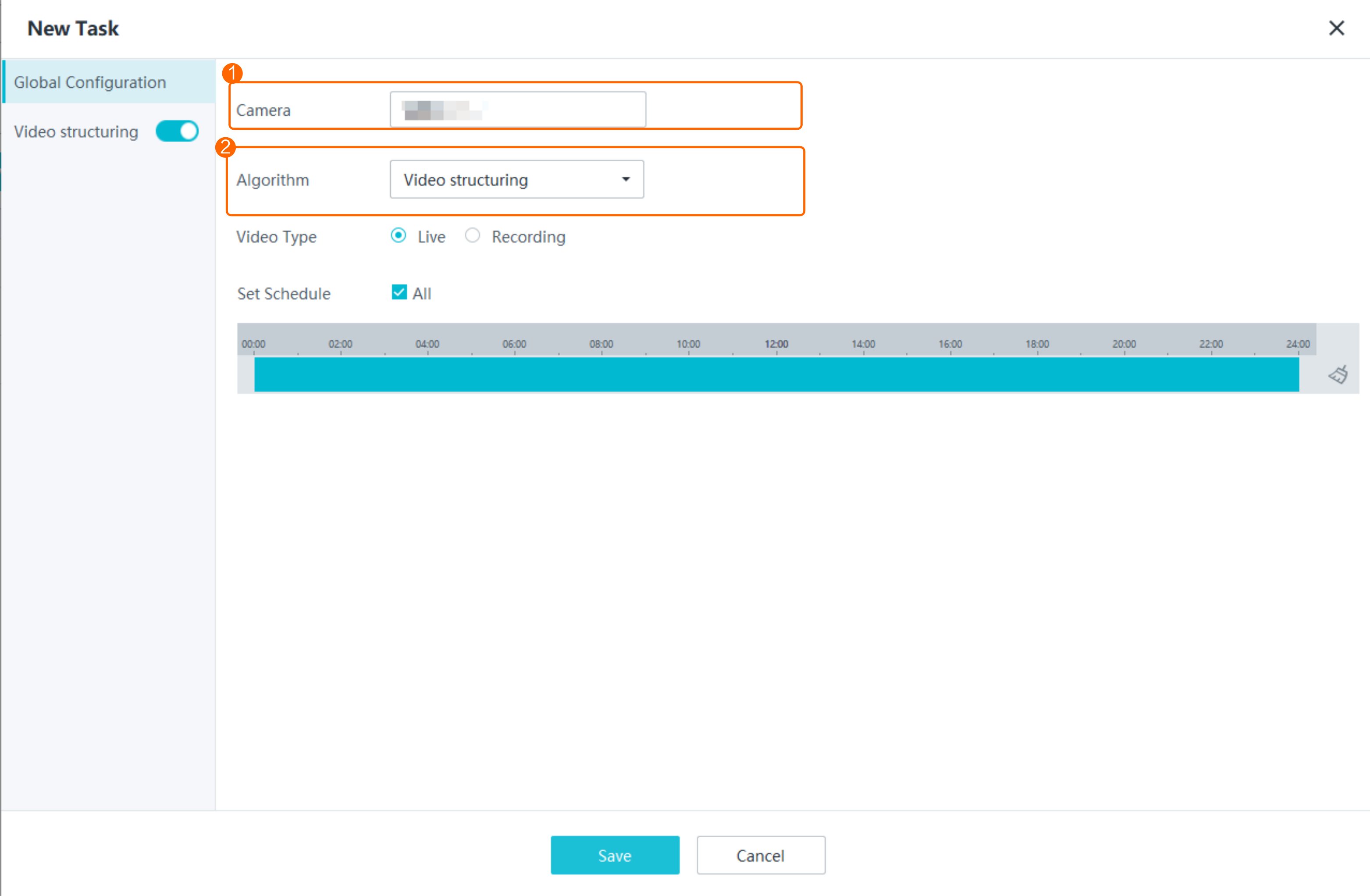
- Set video structuring global parameters, as shown in Figure 4-268.
Table 4-242 describes the parameters.
Table 4-242 Parameter descriptionParameter
Description
Camera
Select the camera for which you want to create an analysis task.
Algorithm
Select an algorithm as required.
- Behavior analysis
- Target recognition
- Video structuring
Video Type
Type of the video used for intelligent analysis. Select Live or Recording as required.
Set Schedule
Set the time segment for executing the analysis task as required.
- Configure the video structuring task, as shown in Figure 4-269.
Table 4-243 Parameter description
Parameter
Description
Enable
Indicates whether to enable the current intelligent analysis task.
Detection Area
Button for drawing a detection area. You can double-click the left mouse button to complete drawing.
You can draw detection areas based on the following rules:
- You are advised to draw lines clockwise. The lines you draw cannot cross each other or form a sharp acute angle. Otherwise, detection areas may fail to be drawn.
- Do not draw polygonal areas that overlap with each other. Otherwise, false negatives may occur.
- Click Save.
Person Search by Attribute
Feature Description
Definition
The device can search the snapshot library for similar objects based on personal attributes.
Customer Benefits
This feature allows users to search for data using a small number of conditions, improving search efficiency.
Application Scenario
This function is mainly used to configure target and vehicle recognition tasks in key areas such as campus roads and fire passages. The system can search for person information in the snapshot library based on personal or cyclist attributes.
Requirements
NE |
Version Requirement |
License Requirement |
Function |
|---|---|---|---|
HWT-IVS1800-D /HWT-IVS1800-E |
11.1.0 and later versions |
N/A |
Provides the function of person search by personal attribute. |
Application Limitations
This function is used only for PoC outside the Chinese mainland.
Feature Configuration (Based on Cameras)
Scenario Description
Table 4-244 describes the support for this feature in different client scenarios.
Client |
Feature Support |
Reference Document |
|---|---|---|
LDU |
Not supported |
Enable object classification for cameras by referring to Enabling Personal Feature Recognition on Cameras and load the target search plug-in of the corresponding device. |
Camera web system |
Supported |
Complete the configuration by referring to the product documentation of cameras. |
iClient S100 |
Not supported |
- |
Feature Configuration (Based on the HWT-IVS1800)
This feature applies only to PoC scenarios outside the Chinese mainland.
Scenario Description
- Table 4-245 describes the support for this feature in different client scenarios.
Client |
Feature Support |
Reference |
|---|---|---|
LDU |
Supported |
Enable object classification for cameras by referring to Enabling Personal Feature Recognition in the HWT-IVS1800, and load the person search plug-in of the corresponding device. |
iClient S100 |
Supported |
For details, see Procedure. |
- After local intelligence is enabled or an analysis task is created for a camera, do not modify the attributes of the camera. Otherwise, target recognition and video structuring tasks will become invalid, and you will need to delete and recreate the tasks.
Prerequisites
- The object classification or target recognition algorithm plug-in has been installed on the HWT-IVS1800 through the OMU portal. For details about how to install the plug-in, see Enabling Personal Feature Recognition in the HWT-IVS1800.
- Image storage parameters have been set. The detailed procedure is as follows: On the iClient S100 home page, choose . Right-click an HWT-IVS1800, choose Storage Management from the shortcut menu, select the desired camera, and set image storage parameters.
Procedure
- On the iClient S100 home page, choose .
- Right-click an HWT-IVS1800 and choose Task Management.
- Click New Task.
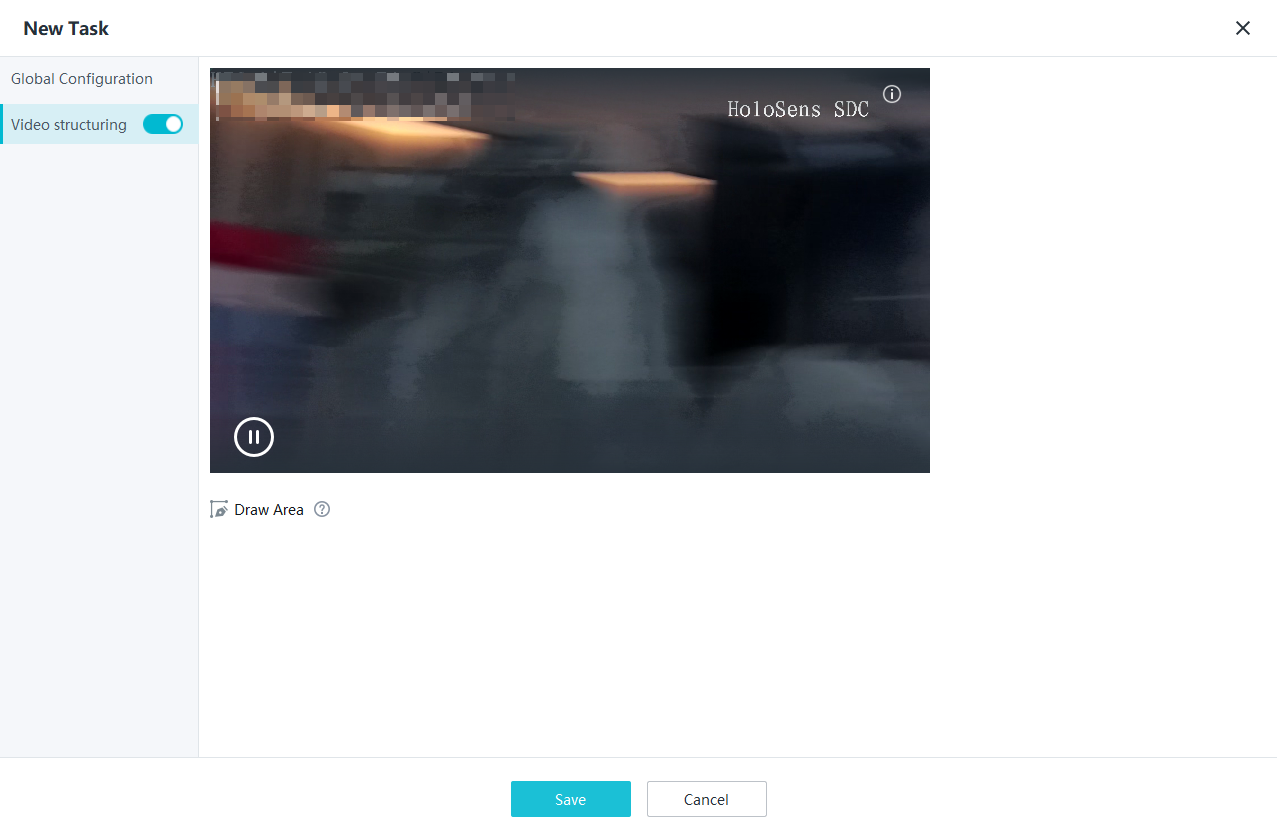
- Set video structuring global parameters, as shown in Figure 4-270.
Table 4-246 describes the parameters.
Table 4-246 Parameter descriptionParameter
Description
Camera
Select the camera for which you want to create an analysis task.
Algorithm
Select an algorithm as required.
- Behavior analysis
- Target recognition
- Video structuring
Video Type
Type of the video used for intelligent analysis. Select Live or Recording as required.
Set Schedule
Set the time segment for executing the analysis task as required.
- Configure the video structuring task, as shown in Figure 4-271.
Table 4-247 Parameter description
Parameter
Description
Enable
Indicates whether to enable the current intelligent analysis task.
Detection Area
Button for drawing a detection area. You can double-click the left mouse button to complete drawing.
You can draw detection areas based on the following rules:
- You are advised to draw lines clockwise. The lines you draw cannot cross each other or form a sharp acute angle. Otherwise, detection areas may fail to be drawn.
- Do not draw polygonal areas that overlap with each other. Otherwise, false negatives may occur.
- Click Save.
Feature Verification
Procedure (on the LDU)
- Log in to the LDU as the admin user. ( Logging In to the LDU)
- Click
 in the upper left corner.
 - Choose .
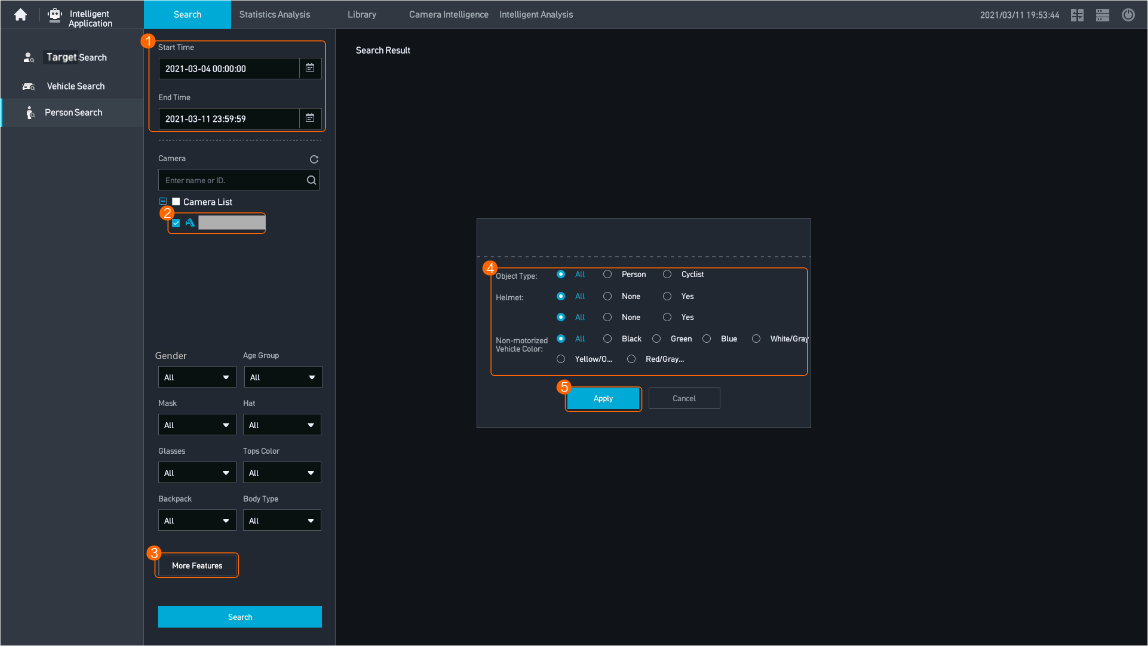
- Configure person search, as shown in Figure 4-272.
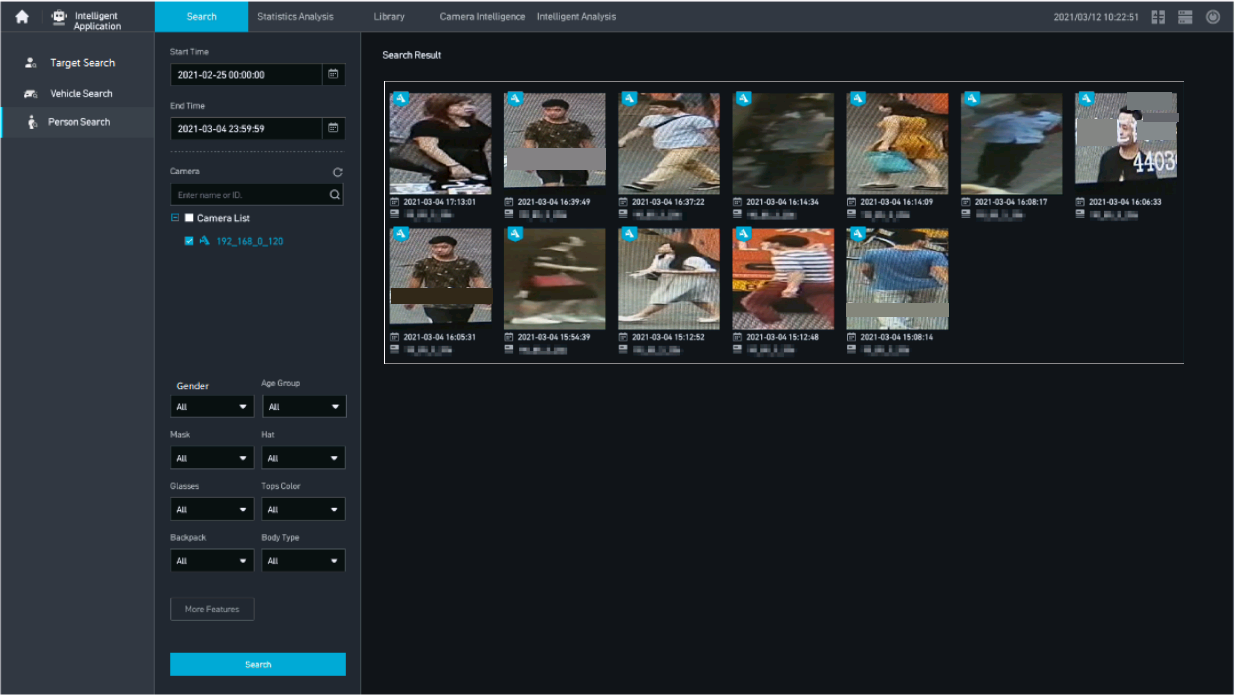
- View person search results.The system can search for images similar to the uploaded image. In the Search Results area, you can click a small image to view the corresponding large image for details, as shown in Figure 4-273.
Procedure (on the iClient S100)
- On the iClient S100 home page, choose .
- Click the Filter by Criteria tab.
- Set search criteria. Table 4-248 describes the key parameters.Table 4-248 Parameters for person search by criteria
Parameter
Description
Source
Cameras from which person images are to be searched for. You can select multiple cameras connected to multiple HWT-IVS1800s.
Captured
Period in which person images are captured.
Object Type
Type of the object for search, for example, Person or Cyclist.
You can also set Tops Color, Backpack, Body Type, Helmet, Non-motorized Vehicle Color, and Non-motorized Vehicle Plate for accurate search.
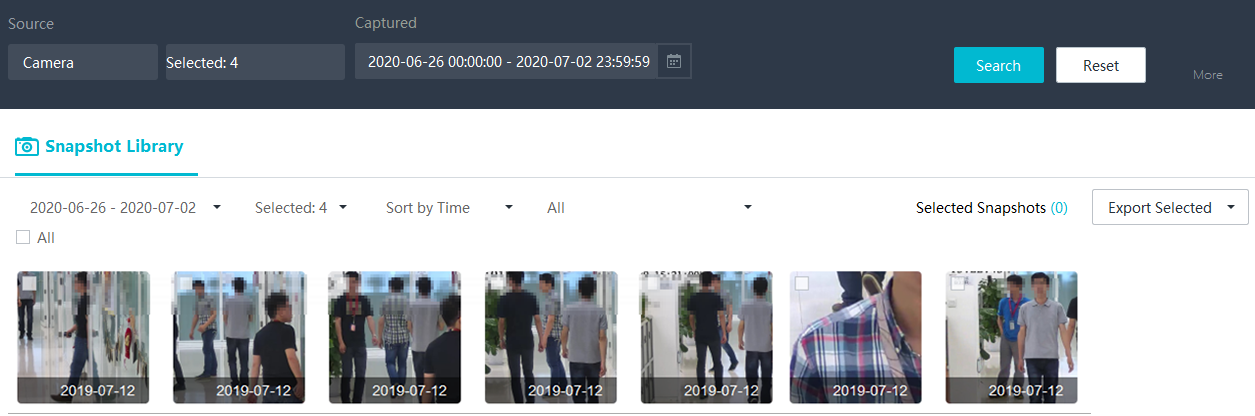
- Click Search. The Snapshot Library tab page with the search result is displayed by default, as shown in Figure 4-274. The snapshot library contains person images captured by cameras and extracted by personal feature recognition tasks or video structuring tasks.
- (Optional) Use a clear person image for secondary search to obtain more images of the person. The procedure is as follows:
Click a person image in the search result. On the details page that is displayed, click Search.
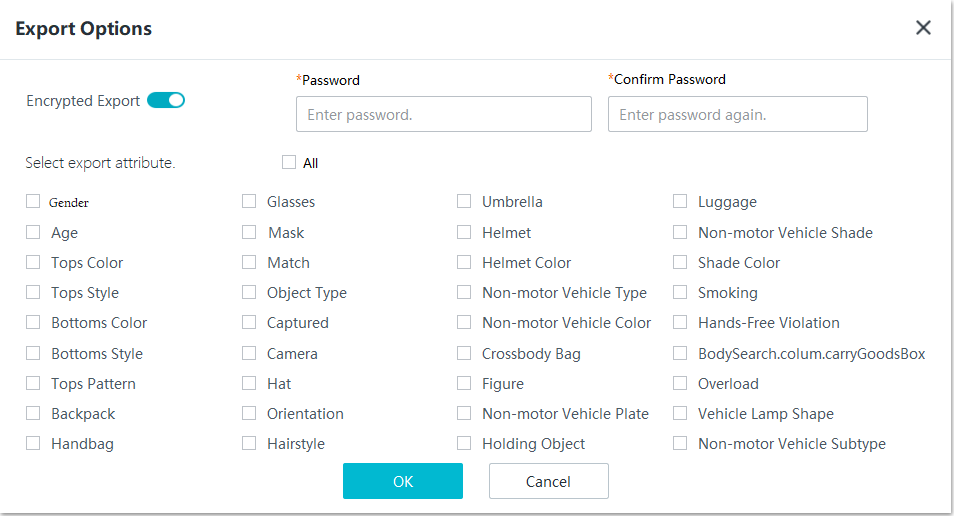
- (Optional) Select multiple person images and click Export Selected to export the selected images. Alternatively, select Export This Page or Export All from the drop-down list box as required. Figure 4-275 shows the file export dialog box.
You can enable the encrypted download function when exporting files. After this function is enabled, you need to enter the preset password when opening the file exported to the local computer.